
Preview
A real-time 3D view of your lighting output, with perspective and orthographic cameras.
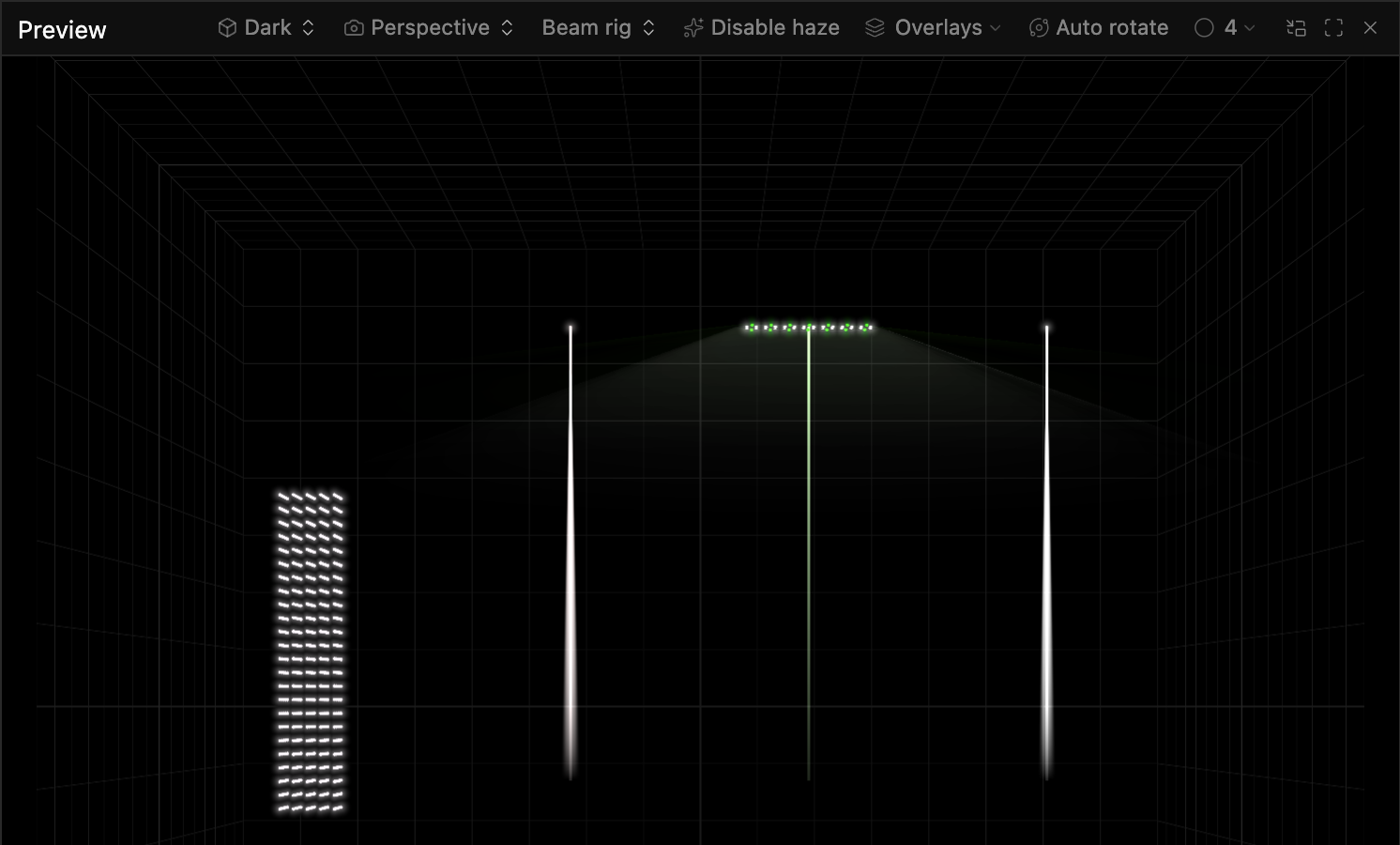
The Preview panel shows your lighting output in real time. It draws fixture colors and intensities on a fixture layout, through a perspective or orthographic camera.
Related concept: Layouts.
Camera modes
Perspective
Shows physical positions and depth from a camera angle you can adjust.
Orthographic
A flat projection without perspective distortion. Use it to check exact positions.
Switch modes with the camera selector in the panel toolbar, or press C.
Navigation (3D mode)
| Action | Control |
|---|---|
| Rotate | Click and drag |
| Pan | Middle-click and drag |
| Zoom | Scroll wheel |
| Reset view | Double-click |
Fixture visualization
Each pixel of each fixture is a point in 3D space, drawn in its current color. Moving heads sit as they hang, so a hung head's pixels lie on its face. The face points the way the light leaves the head at rest. For a typical hung moving head, that is down.
Every fixture also shows its body, as a silhouette or a plot symbol, by the Fixtures choice. The body is sized so that its face spans its pixels. A moving head's yoke and head turn with its pan and tilt as the show runs. Pixels draw over the body, so a lit pixel on the face of a head stays visible from any angle. A fixture split into parts in the layout shows one body, on its first part. The exception is a stack of bars that its profile places one by one, which shows a body for each bar.
Moving heads, scanners and fixtures with a zoom also have beams, which follow pan and tilt as they change. In a layout with Pixels follow pan/tilt on, a head's pixels turn with its beam. With haze on (the default), a beam shows as a cone of light in the air when its profile gives the beam's angle. The profile can give that angle through the zoom or as a fixed beam angle. The cone's width follows the zoom.
The Beam directions overlay draws each beam as a line from the fixture in the direction it points. Cone and line take the beam's color. When the fixture is dark, the cone disappears. The line stays faintly visible, so you can still see where the beam aims. If a fixture's profile has no color, its beam shows only its line, in gray, because the Preview cannot tell whether the beam is on. If a beam's profile has no angle for the current pan or tilt value, the Preview leaves the beam out.
Haze also puts a small soft glow around every lit pixel. The glow grows brighter and wider as the pixel gets brighter. Where many glows overlap, as on a dense LED sculpture, they show no brighter than the brightest one, so the pixels stay readable. A fixture with no beams, such as an LED strip, shows as its pixels and their glow, unless you set a beam for it in the Fixtures panel.
How a beam draws depends on its type. The type comes from the fixture profile or from a generic fixture's beam setting. When neither gives a type, the beam's angle decides it: up to 40 degrees the beam is a spot, and a wider beam is a wash.
-
Spots, beams and profiles, and PC and Fresnel lenses, draw a shaft of light and their own aim line.
-
Washes draw a soft volume that spreads at their field angle. The field angle is the angle where the light fades out, and on most washes it is wider than the beam angle. A fixture with up to 64 wash lenses draws one volume per lens, in that lens's color, so a pixel bar shows each cell through the haze.
A fixture with more lenses, such as a long LED strip set to Wash, joins lenses into one volume. It joins the lenses of one head that point the same way at the same angle. The volume leaves the area that its lenses cover. Across that area it shows each lens's color, blended where their light overlaps, much as the lenses look when drawn one by one. A dark lens leaves its part of the volume dark, and each lens keeps its own color as a pixel.
Individual beams in the fixture's settings switches between the two ways. The Beam directions overlay draws one aim line per head of washes.
-
Glow and None emitters, such as an LED ring on a moving head, draw no beam. Their pixels are the light.
Brightness follows the angle that the light fills, as it does on stage. There, a narrow beam packs its light into a small spot and a wash spreads it wide. A 20 degree spot draws at the base brightness. Narrower beams draw brighter and fuller, and wider light draws dimmer.
A joined wash volume is as bright as one of its lenses. As a result, a long LED strip set to Wash shows as a faint fill beside a beam of a few degrees. Lenses drawn one by one share that light. Where their beams overlap, they mix their colors rather than burn to white. When you switch Individual beams, the fixture stays as bright.
No matter how far you zoom out, a shaft draws at least 8 pixels wide at its far end. A 2 degree beam thus still reads as a shaft of light.
Some fixtures, such as a discharge spot, have one white lamp behind a color wheel. Their pixel and beam show the color of the current wheel slot, at the level of the dimmer. Two wheels in the beam multiply their colors. While the wheel spins or sits between two slots, the Preview shows the lamp's white.
A fixture's shutter acts on all of its pixels and beams. When the shutter is closed, the fixture shows dark. When it strobes, the fixture flashes at the rate that its profile gives for that value. The flashes follow the profile's pattern: plain flashes, soft pulses, ramps up or down, or flashes at random. A strobe faster than the screen refreshes shows as dimmer light in place of single flashes.
A gobo in a beam shows in the shaft and in the pool of light on the floor. It turns and spins as the fixture turns it. Fixtures imported from GDTF show their own gobo images. A gobo without an image, as on a fixture you built yourself, shows the Spectralite mark's four dots, so you can still see that a gobo is in. The Preview draws gobos to show what a fixture does, not as a visualiser would. It does not draw prisms, frost, iris or focus.
The beams follow what the fixture receives, so the pan and tilt settings of a patched fixture show here too. For example, if you invert pan, the beam swings to the other side. A head stood on the floor by a half turn about X in its layout points up at rest. When you scale or flip a head in the layout, its pixels and lenses move. How far and which way the head turns never changes (see Scale and flips).
Layout display
A layout appears in its configured shape, position, and scale, with each pixel in its current color. Spectralite may simplify large layouts to keep the preview fast.
Toolbar options
Background
Choose Dark (the default), Light, or High Contrast (pure black).
Camera
Choose Perspective or Orthographic projection.
Layout
Select which layout to display in the preview.
Haze
Haze shows the light in the air: the beams' cones and a glow around every lit pixel. It is on by default. The button reads Disable haze while haze is on and Enable haze while it is off. With haze off, the Preview shows the pixels and the overlays only.
Overlays
The Overlays menu holds guides that are not light:
- Beam directions draws a line along each beam to show where it aims.
- Cone outlines draws two lines from each beam's fixture. The lines are as wide apart as its beam angle and turn to face you, so they run down the sides of its light and end at the edge of its pool on the floor. Washes have no outline. Like the aim line, an outline takes the beam's color and stays faintly visible while the fixture is dark. It is off by default.
- Grid draws the grid around the scene.
- Floor draws a floor under the scene, at the bottom of the grid, where each beam leaves a pool of light. Beams stop at the floor while it shows. It is on by default.
Spectralite saves the haze and overlay settings with the project.
Below the overlays, Fixtures picks Silhouettes or Plot Symbols for the fixture bodies. It is the same app-wide setting as Window > Fixtures, so it changes every 3D view, and it is remembered between sessions.
Keyboard shortcuts
| Shortcut | Action |
|---|---|
C | Toggle camera |
B | Cycle background |
H | Toggle haze |
Related panels
- Fixtures manages the fixtures in the project.
- Layout Editor places fixtures in a layout.