
Color
Author one color, and Spectralite renders it onto each fixture's real emitters and keeps it inside what that fixture can produce.
Spectralite treats a color as a request for light. You author it once, and for each fixture the engine works out how to make that light on the emitters the fixture has. An emitter is one of the colored elements a fixture mixes with. Examples are the red, green, and blue of a par, plus any white, amber, lime, or other channels a richer fixture carries. As a result, one authored color looks the same across a rig of mismatched fixtures. If you put a warm amber on an RGB par, an RGBW wash, and a color-mixing mover at the same time, all three show the amber you picked.
Four ideas decide how a color reaches the rig:
- the three ways to author a color
- the control that decides how a color is mixed when a fixture has emitters to spare
- what happens when layers stack past what a fixture can put out
- how the engine keeps a color inside what each fixture can reach
The Color panel reference covers the controls themselves.
Three ways to author a color
Every color uses one of three modes, chosen with the xyY, Channels, and Temp tabs on the color. Two of them describe the light you want and let the engine work out each fixture's recipe. With the third, you name the recipe yourself. A gradient uses one mode for all of its stops. When you click a tab, Spectralite converts the whole gradient.
xyY
xyY is the portable color. When a look has to hold across different fixtures, use xyY. You pick a point on the CIE chromaticity diagram, which is the standard map of every color the eye can see. Its x and y coordinates fix the hue and saturation.
Brightness sets how much of that color you want, as a percentage of the brightest the fixture can make it. At 100%, a saturated red is the red emitter at full, and a white is the brightest white the fixture has. Because the point names a perceived color, the same xyY value drives an RGB par, an RGBW strip, and a CMY mover to the same visible result. New colors start in this mode.
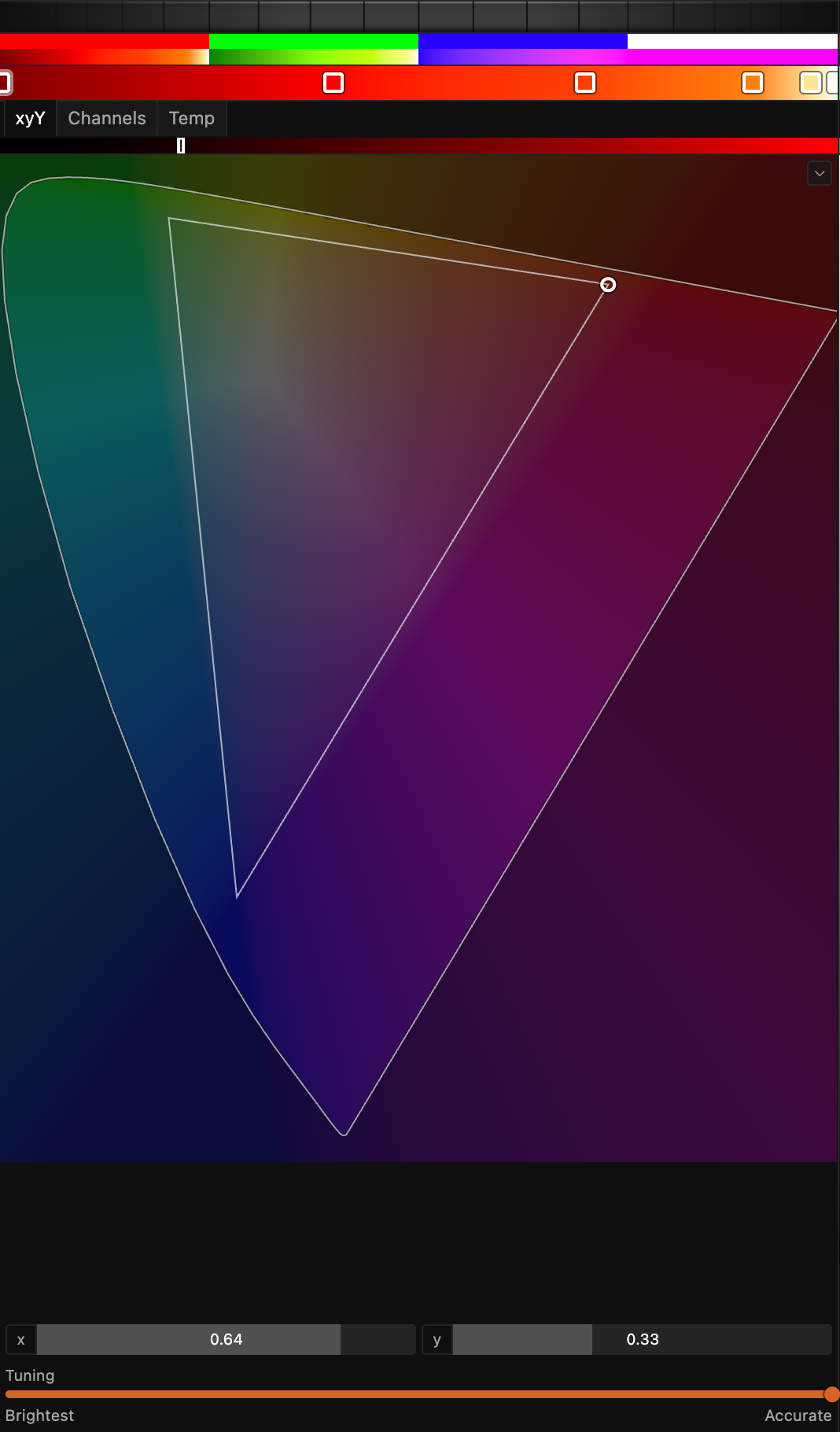
The chevron in the corner of the diagram opens its display options. One option adds reference outlines for the Rec.709 (sRGB) and P3 gamuts. Another switches between the classic CIE 1931 diagram and the CIE 1976 version, which spaces colors more evenly. Both outlines are display gamuts, shown for orientation only.
Temp
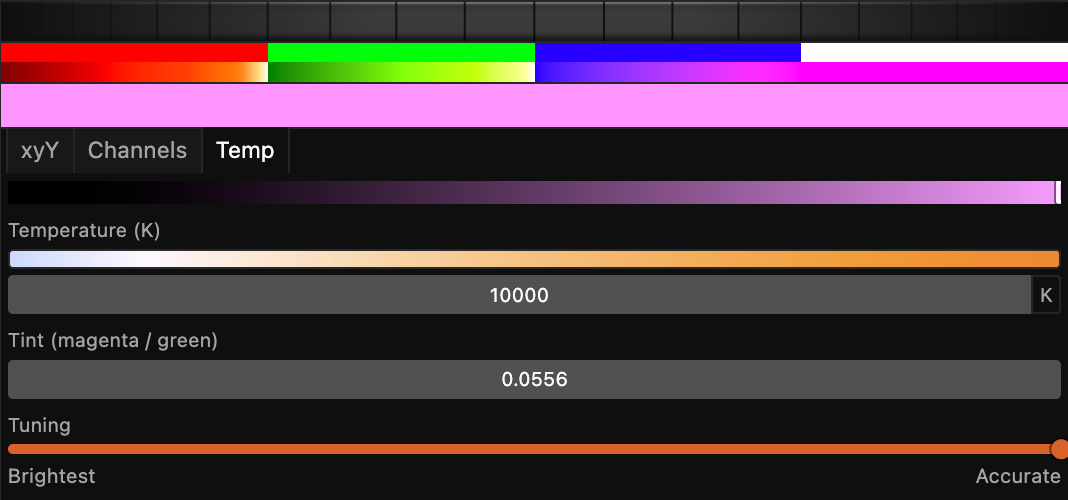
Temp describes white in the units that stage and film lighting use. A color temperature in kelvin runs from warm tungsten around 3200 K to cool daylight past 6000 K. A magenta-to-green tint adds the small correction that real white light usually needs. A temperature resolves to a point on the blackbody curve. From there it behaves exactly like an xyY color, with the same Brightness and Tuning controls, so it travels across fixtures the same way. Whenever the look you want is a white, use Temp.
Channels
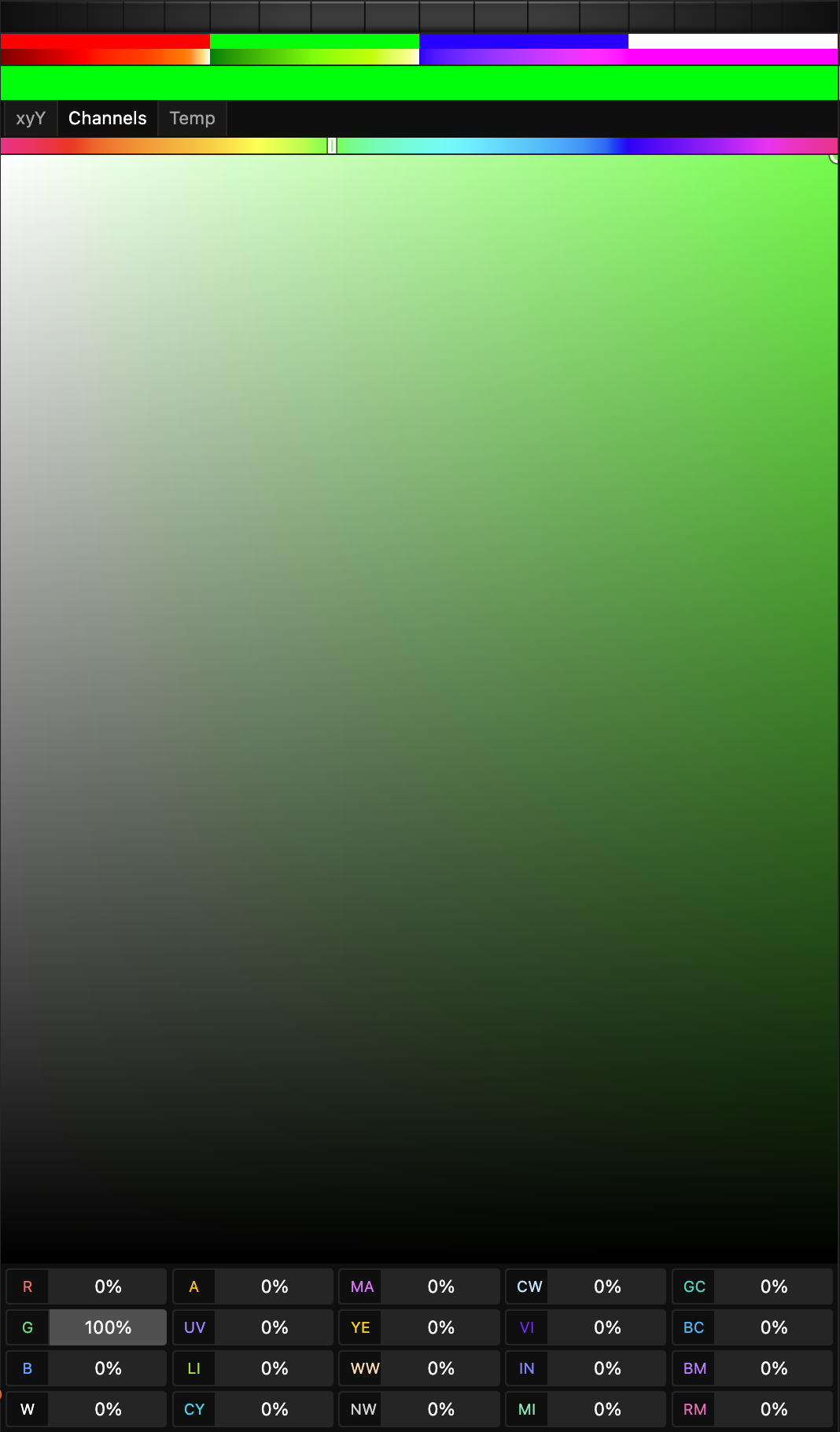
With Channels, you set each emitter's level yourself, as a percentage of that emitter's full light output. Every fixture the color reaches drives the emitters it has at those levels. Twenty roles are available: red, green, blue, white, amber, UV, lime, cyan, magenta, yellow, warm white, neutral white, cool white, violet, indigo, mint, green-cyan, blue-cyan, blue-magenta, and pink.
By default, the grid shows red, green, blue, and white, plus the roles your patched fixtures have. It also shows any role that the color already uses. To show all twenty, turn off Window > Only Used Color Channels. A fixture without a role ignores that level. Channels suits an exact recipe, a single emitter on its own such as UV or a specific white, and direct control of one known fixture.
Two kinds of fixture need a portable color instead. A color-mixing mover with cyan, magenta, and yellow filters takes no Channels recipe. Only an xyY or Temp color moves its filters and lamp together. When you hover the fixture's address, the patch shows a note that says so. Some fixtures have a second, separate set of color emitters. On those fixtures, a color drives only the first set, and the second set stays available as plain faders in the Parameters panel.
A Channels value names light. Spectralite works out the DMX level that produces that much light from the emitter. Some manufacturers measured how their emitters respond, and on those fixtures the level sent differs from the percentage you typed. Four fixtures in the built-in library carry such measurements:
- The Ayrton Zonda 3 Wash, in all of its modes. A red at 50% sends DMX 147, because DMX 128 would light the red emitter to only 41.5%.
- The Briteq BTX-Skyran, for its warm white in 7 of its 8 modes.
- The Prolights EclPanel TWC and TWC XL, in most of their modes. On these, the difference stays within about 3% of output.
Every other fixture in the library responds evenly across its range. On those fixtures, the light you name and the level Spectralite sends are the same number.
The Tuning control, from Brightest to Accurate
A fixture with only red, green, and blue emitters can reach a given color exactly one way. A fixture that also carries a white or an amber can reach the same color in several ways. It can lean on the white, blend the primaries, or do something in between. All of those recipes look identical to the eye, so the choice between them can be a control. Two different emitter mixes that produce the same visible color are called metamers. This control chooses between them.
The Tuning slider runs from Brightest at one end to Accurate at the other. It applies to xyY and Temp colors, and one setting covers a whole gradient. New colors default to Accurate.
Brightest favors the recipe with the most total output. Every emitter that helps contributes, and the fixture puts out as much light as it can for that color. Accurate leans on the emitters closest to the target, so a white lands on a dedicated white emitter. Both ends produce the same color. What changes is which emitters make it, and that affects how the beam renders surfaces and how it photographs.
Accurate costs output. On a four-emitter head, Accurate can cost about half the light at full, and more on a six-emitter head. Below that level, both ends are equally bright.

On a plain three-emitter fixture the slider changes nothing, because such a fixture has only one recipe for any color. If you hover such a fixture's address in the Address Space panel, a note says so. Tuning matters on RGBW, RGBA, and warm-and-cool-white units, and on fixtures with lime, violet, or other extra emitters.
Because the two ends are metamers of the same target, every setting between them gives the same color. A value can sweep from one Tuning setting to another, or two layers with different settings can mix. In both cases, the color the audience sees stays the same, and only the emitter mix changes.
Stacking layers
Each layer in the stack asks for light, and Spectralite adds those requests up per fixture before it works out a single recipe. When the stack asks for more light than a fixture can give, the color mode decides what happens. The order of additive layers does not change the result.
xyY and Temp colors add as light. When their sum passes what a fixture can put out, the whole mix dims together. The fixture then shows the hue that the stack composed, at a lower brightness. A bright mix keeps its color as you add more layers.
The cost is peak brightness, because a deep additive stack reads a little dimmer than it would if each emitter ran to its own ceiling. An added layer never makes an emitter dimmer than that layer alone would drive it. A white strobe over a red wash lights every emitter to at least what either layer asks.
Channels colors stack per emitter. Levels add, and each emitter stops at 100%. As a result, three Channels layers of the same orange stack to yellow, because red hits full while green keeps climbing. Three xyY layers of that orange stay orange. When a stack holds both kinds, each emitter receives the light share and the Channels share added together, capped at full.
In either mode, an override layer replaces what is below in proportion to its opacity. So the position of an override layer in the stack does change the result.
Rendering across different fixtures
Fixtures differ in the range of color they can reproduce. A fixture's reachable range is its gamut, and its real emitters fix it. Three primaries reach one triangle of colors, and a fourth or fifth emitter widens it. A fixture cannot produce a color outside that boundary. Spectralite builds each fixture's gamut from its actual primaries.
When an xyY or Temp color falls outside what a fixture can reach, the engine keeps the hue and reduces the saturation. It pulls the color toward the fixture's own white until the color lands on something the fixture can make. Take a deep saturated blue that one fixture can hit and another cannot. The second fixture renders it as its own most saturated blue of the same hue, so a wash stays even across a stage of mismatched lights.
A reachable color brighter than the fixture can go keeps its chromaticity and clips in brightness. Some fixtures have no saturation to spare. A tunable white with two emitters reaches only a line of colors, and a single-color fixture reaches one point. The patch reports those cases, so you can see why a color lands where it does.
Channels colors skip the solve as long as they reach the fixture directly. Each emitter puts out the share of its light you asked for.
A mixing node changes that. Mix Color and Add Color have to combine a Channels color with something described the portable way. The only thing the two have in common is the color they make, so Spectralite first converts the Channels side to a described color. That conversion loses three things:
- Two different emitter mixes that make the same color become the same color. You cannot get the original mix back.
- The engine picks the brightness for that color, and the brightness your levels implied is lost.
- Only red, green, blue, white, and amber take part in the conversion. Spectralite drops UV, lime, the extra whites, violet, mint, and the rest.
If you want a Channels recipe to arrive exactly as authored, keep it out of a mix.
UV is dropped for a further reason. A portable color describes visible light, and UV has no visible color to describe. An xyY or Temp color never touches a UV channel. To drive UV, author a Channels color that names it, and keep that color out of any mix.
On a color-mixing mover with cyan, magenta, and yellow filters, the color's chromaticity positions the filters. Its Brightness drives the lamp, so a Brightness of 0 fades the head to black.
A fixture whose only color comes from a color wheel, such as a discharge spot or a scanner, turns its wheel to follow the color. The wheel moves to the slot nearest the color your layers compose. The color's Brightness sets the dimmer, so a red at Brightness 100% opens the dimmer fully on the red slot.
A Channels color goes through the same conversion as a mix. Its red, green, blue, white, and amber levels count, and a color made only of UV or lime leaves the fixture dark. When the color goes dark, only the dimmer closes, and the wheel waits on its last slot. So a chase with dark steps keeps the wheel still.
A crossfade from one layer's color to a different color dips to about half brightness at the midpoint. On a fixture that also mixes color with LEDs or with cyan, magenta, and yellow filters, you set the wheel in the Parameters panel. To set a wheel by hand on a wheel-only fixture, turn off Color wheel follows color in the fixture's settings (see the Fixtures panel).
Gradients
Each preset color is a gradient, so an effect can sweep across a run of colors. Between two stops, Spectralite blends in the color space set under Edit > Renderer Settings. Renderer Settings lists the choices. The default, Oklch, keeps a fade saturated: a red-to-blue gradient passes through purple. Both linear RGB spaces blend the light itself, as two real lights do when they crossfade, so the fade dims through gray in the middle.
A Temp gradient between two whites sweeps in even steps of warmth in any space. One Tuning setting covers all of a gradient's stops.
Calibration and fixture profiles
You can author color without knowing how the solve uses fixture data. When a fixture's profile carries the manufacturer's measured color data, Spectralite solves against those numbers. It also tracks how much data it has and how good it is.
A fixture profile can come from a GDTF file. GDTF is the standard exchange format for fixture definitions, and importing GDTF describes it. Beyond the channel layout, a GDTF file can carry measured colorimetric data for each emitter:
- its exact chromaticity (the precise x and y of that fixture's real red)
- its relative brightness against the fixture's brightest emitter
- a response curve, which describes how the emitter's output tracks its control level
When that data is present, the solver models the fixture from the measured numbers, so it computes each color against the emitters this fixture has. A measured response curve also corrects each emitter's dimming behavior, so a level lands where the manufacturer measured it to land. That correction reaches Channels colors as well. It is how the four measured fixtures listed under Channels land a Channels percentage at the light it names. When a profile ships no measured data, Spectralite falls back to defaults taken from the measurements in manufacturers' own GDTF files.
Spectralite tracks where each piece of color data came from and how trustworthy it is. For every emitter, it records the provenance of the chromaticity, which is one of three cases:
- The profile named that emitter directly. This is the strongest binding.
- Spectralite matched the emitter by its color.
- Spectralite found no usable data and substituted a default.
Spectralite also classifies each profile into a data-quality tier. The tiers run from a profile with real measured chromaticities down to one that declares color mixing but carries no emitter data at all. Some GDTF files carry placeholder, transposed, or physically impossible chromaticities, so Spectralite validates every emitter's color against the visible spectrum. Before a coordinate outside the range of real light reaches the solve, Spectralite pulls it back onto the boundary of what the eye can see. Then it records the correction.
Where the data itself is doubtful, the patch says so. The Address Space panel marks a fixture as needing attention when its file does one of these things:
- rates one emitter brighter than the whole fixture
- claims every emitter is equally bright, against its own measurements
- names a white its emitters cannot mix
- carries no measured color at all
The mark comes with a sentence that says what to do.
Spectralite uses the fixture manufacturer's measured profile data. In Spectralite, "calibration" means that the engine honors those declared measurements and tracks their provenance and quality. You cannot measure your own physical units or enter corrections in the app.
Spectralite also does no spectral rendering. For CMY fixtures, the subtractive mixing is a color-space approximation of how their filters combine. It is exact at the extremes and a smooth estimate between them. The approximation is accurate enough to keep a CMY mover on color alongside your LED fixtures. Where the data is thinner or the physics is approximated, the engine says so.
Preset colors and the color library
The Color panel authors three project-wide preset colors: the primary, the secondary, and the tertiary. Effects reference them throughout a show. When you edit one there, every effect that uses it updates at once, so you can restyle a whole show from one place.
The swatches above each preset color are the color library, Spectralite's equivalent of a gel swatch book. Each swatch is a named color you can refer to the way you would a filter number on a traditional rig. Click a swatch to apply it, or open the full set to browse, import, and manage libraries. See the Library Manager for organizing them, and the color nodes for referencing preset colors inside an effect.
Related
- Core Concepts shows where color sits in the full signal flow.
- Effects and layers explains the layer stack.
- Output explains how resolved color leaves the machine as DMX.
- The Color panel authors preset colors and gradients.
- Renderer Settings sets the gradient color space.
- The Address Space panel reports a fixture's color limits.
- Importing GDTF explains where measured fixture profiles come from.
- Color nodes reference preset colors inside an effect.
- The Library Manager manages color libraries and swatches.